Link your Case to Your Account on BenefitsCal
After you create your BenefitsCal account, you’ll need to link your case so you can manage your benefits online or on your phone. Linking your case puts all your information in one place, making it easy to check updates, submit documents, and avoid extra trips or calls to the county office.
Watch this short video to learn how to link your case to your account. To change the video’s captions to another language, click the gear icon on the video, select "CC" or "Captions," and choose the language you prefer.
There are also step-by-step instructions listed below.
Step-by-Step Instructions to link your case in BenefitsCal
-
1
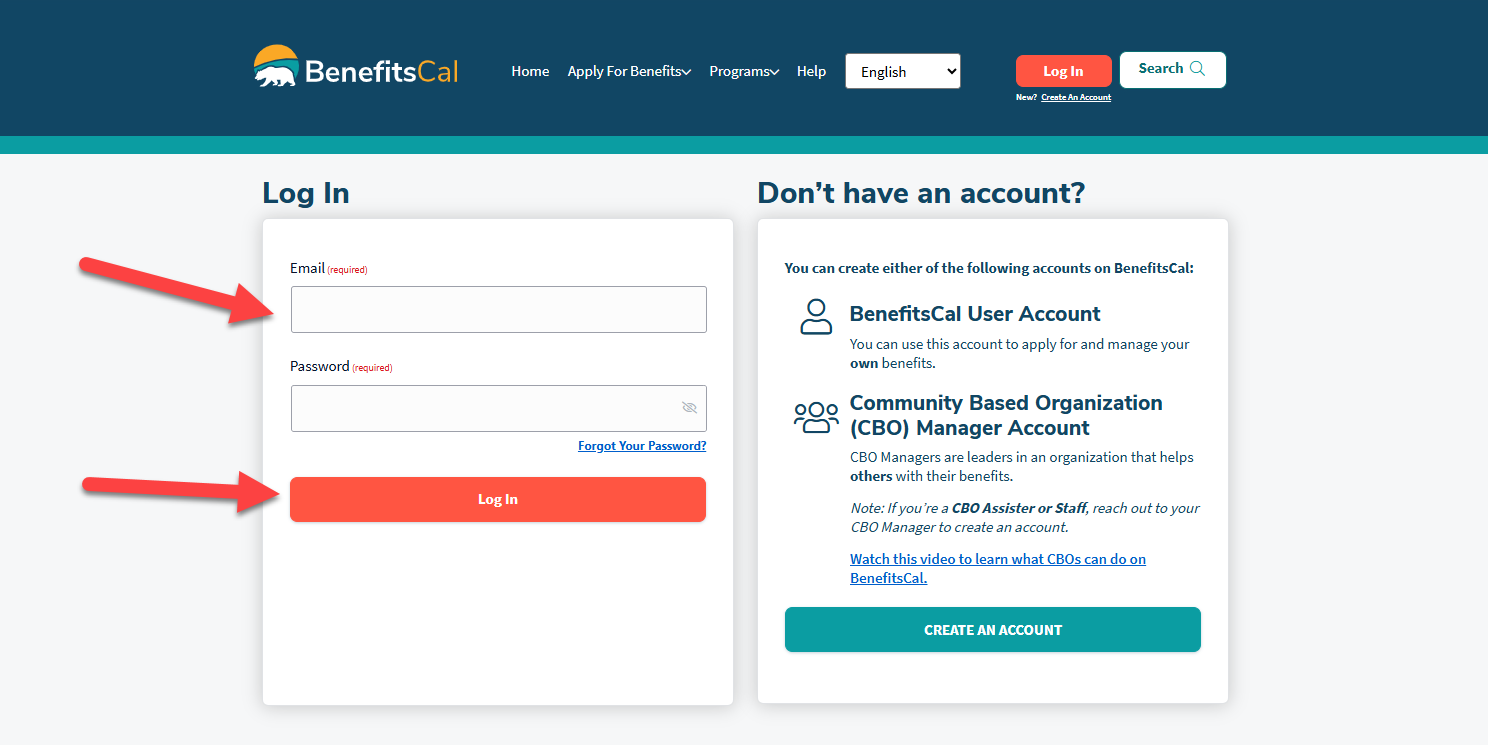
Log into BenefitsCal
Pumunta sa BenefitsCal.com and log in to BenefitsCal using your email and password.
-
2
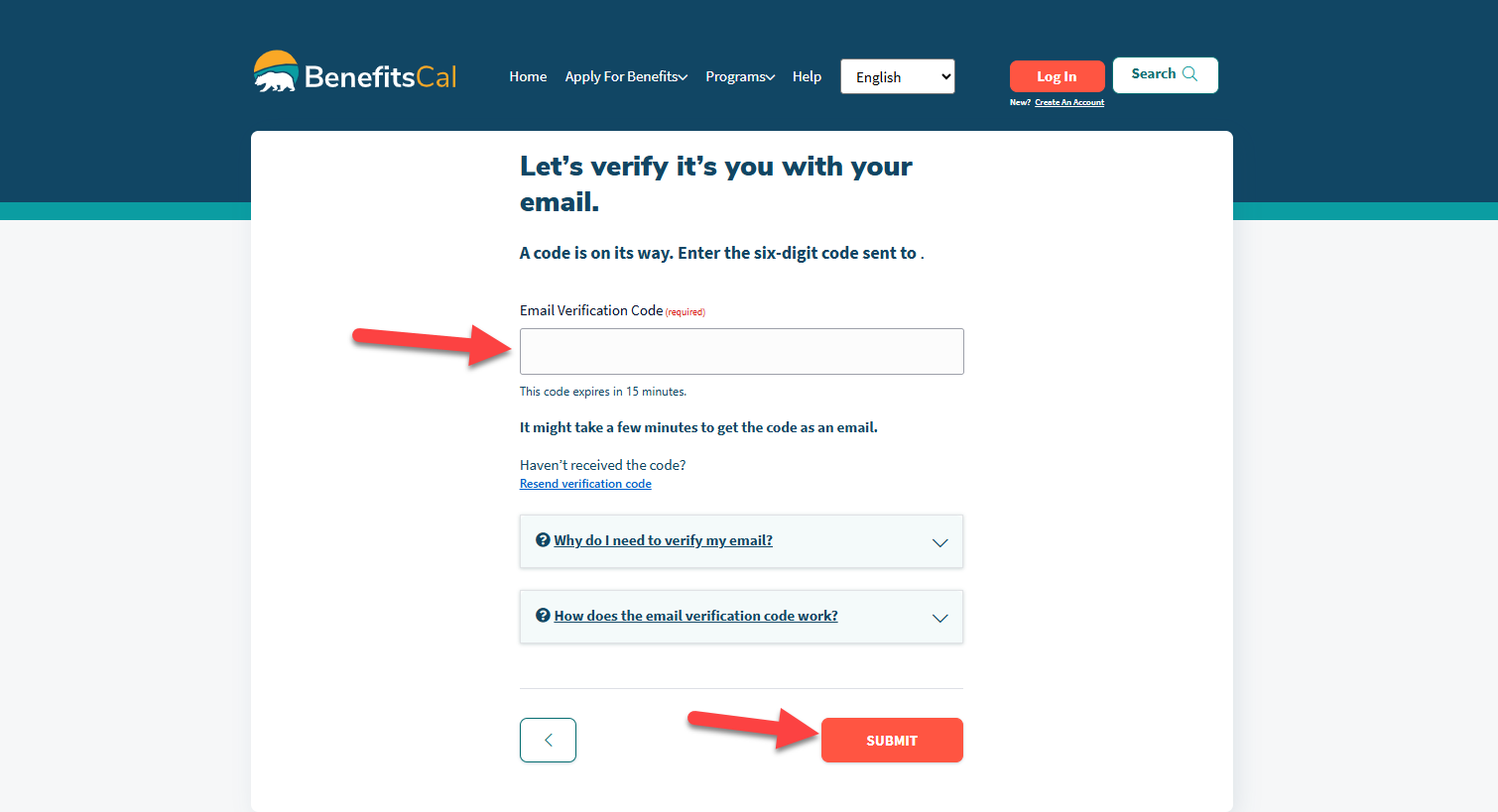
For security purposes, you will need to verify your email
- Go to your email inbox and find the most recent email titled “Your BenefitsCal Verification Code.”
- Copy the 6-digit code in the blue box.
- Enter the code on the BenefitsCal email verification page and select “Submit.”
- Accept the "Terms of Use" to continue.
-
3
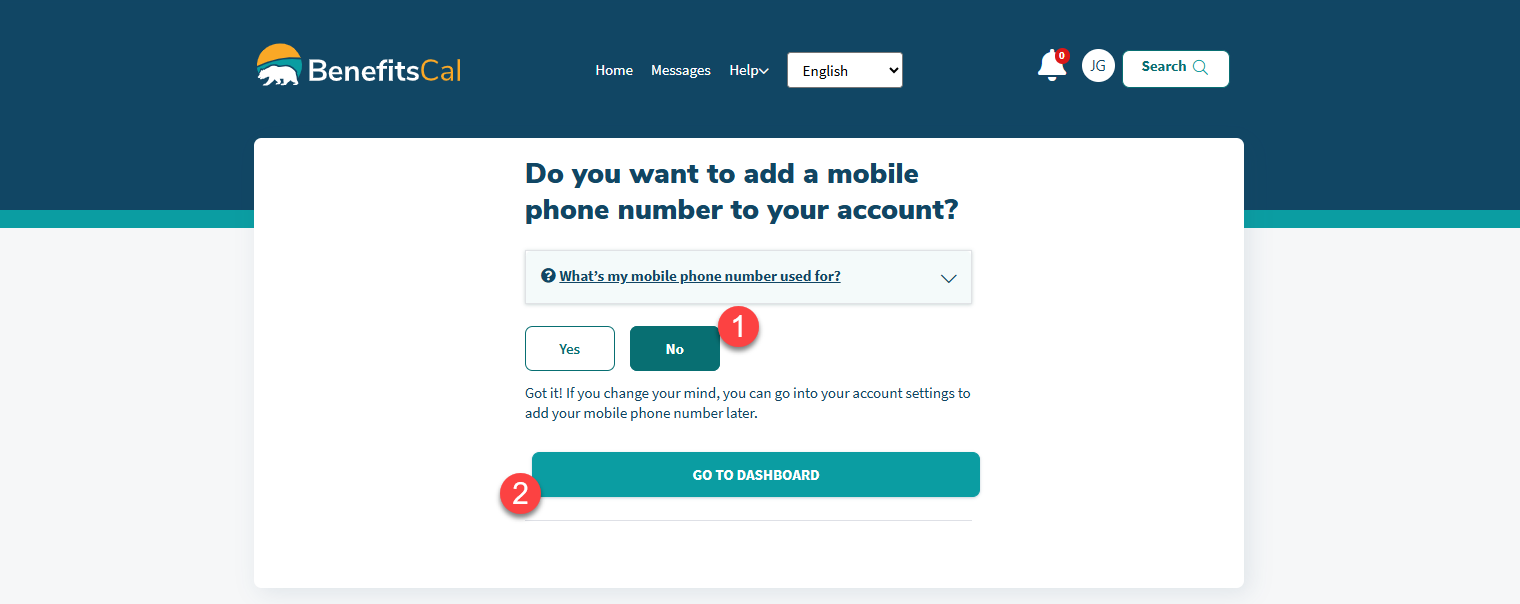
We advise skipping adding your phone number for now to link your account more quickly.
- Click on “No.”
- Click on “Go to dashboard.”
-
4
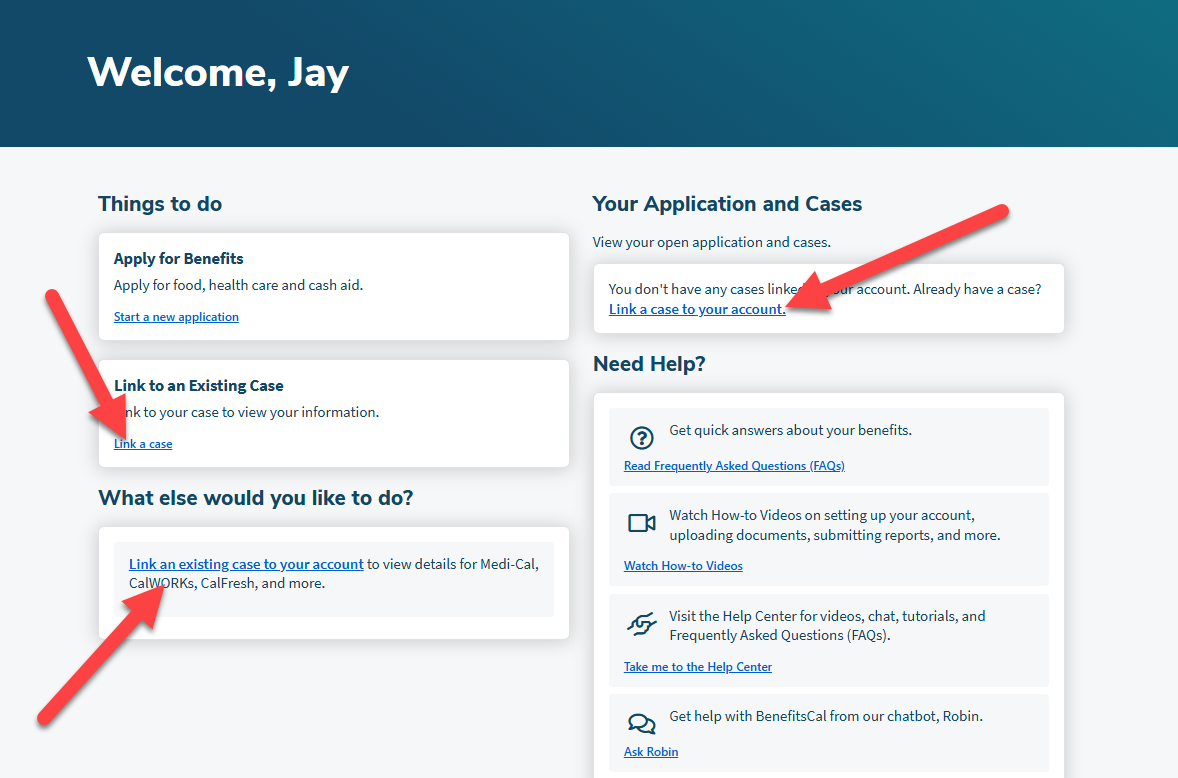
Click “Link a case”
Click “Link a case” under “Things to do” or in any of the other sections.
-
5
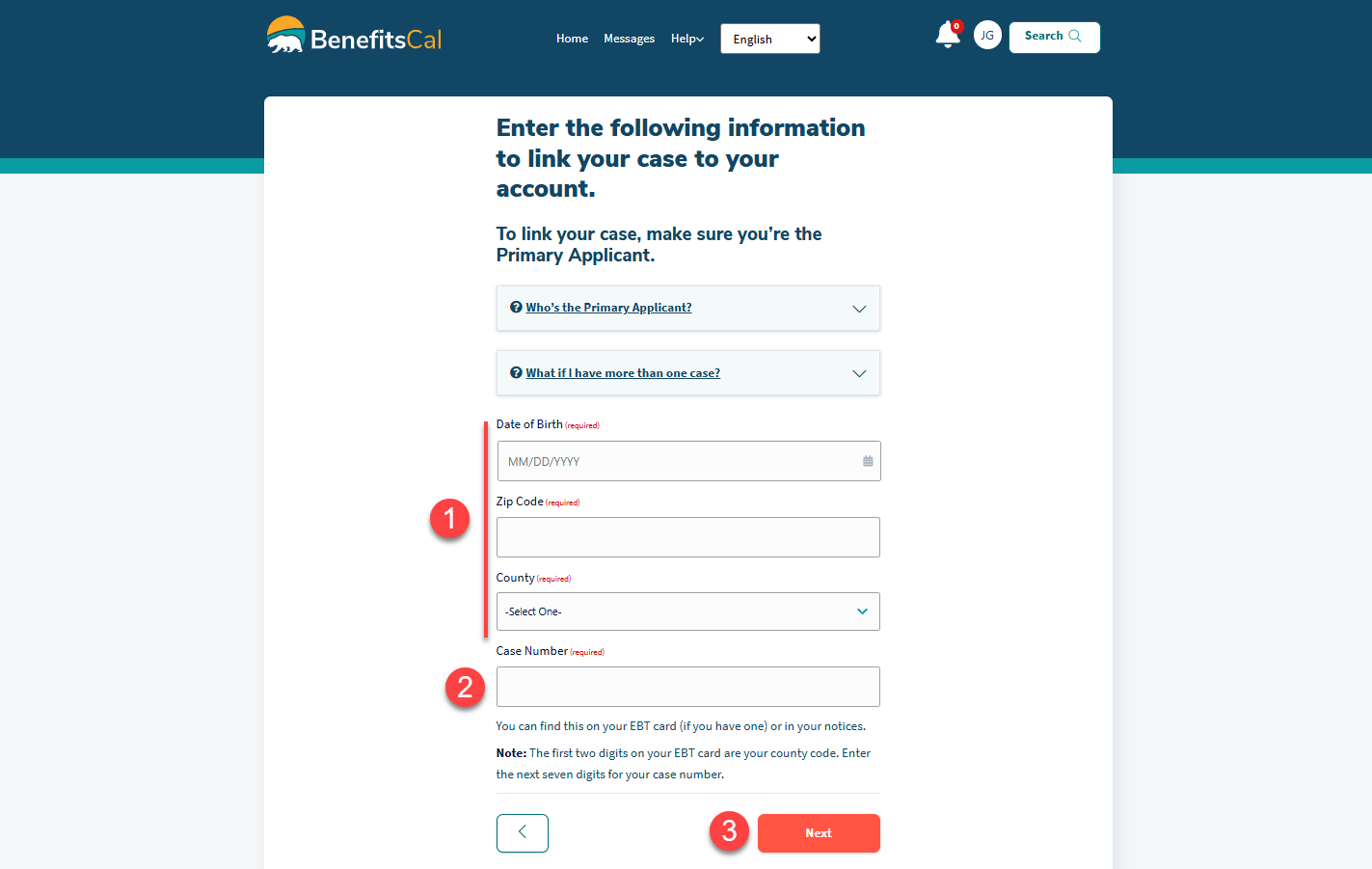
Fill in your case details
- Enter your personal details.
- Enter your case number. You can find your case number the following ways:
- The last seven digits of the code on your EBT card.
- In the paper notices mailed to you about your benefits.
- Click "Next."
-
6
Verify your linked account
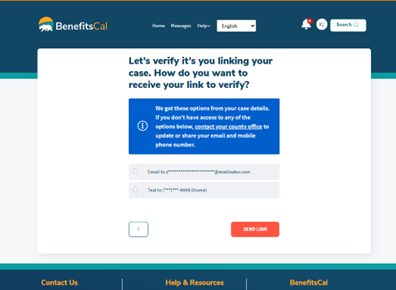
- If your phone number or email address has previously been added to your case, you can use that to verify your account.
- Choose where you would like the link sent, then click “Send Link.”
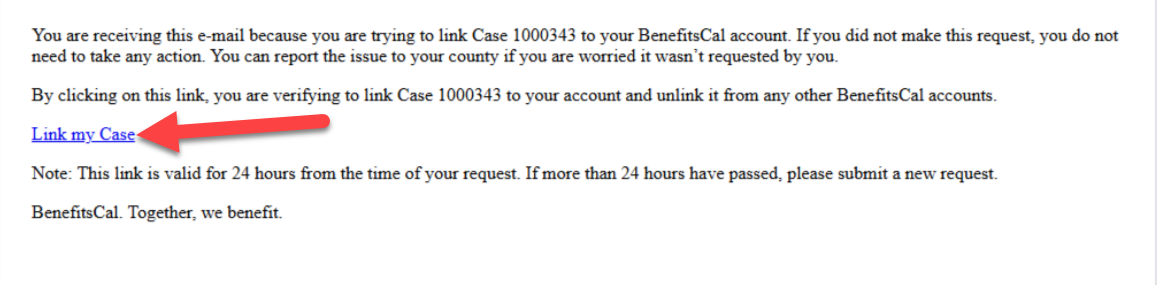
- Check your email inbox for an email titled “BenefitsCal Account Linking Verification” and click the “Link my Case” link.
- If you don’t have an email or phone number on file, or if you need to update them, you will need to contact us to add it to your case. Once your contact details are updated, you can finish linking your case.
-
Congratulations, you’ve linked your account
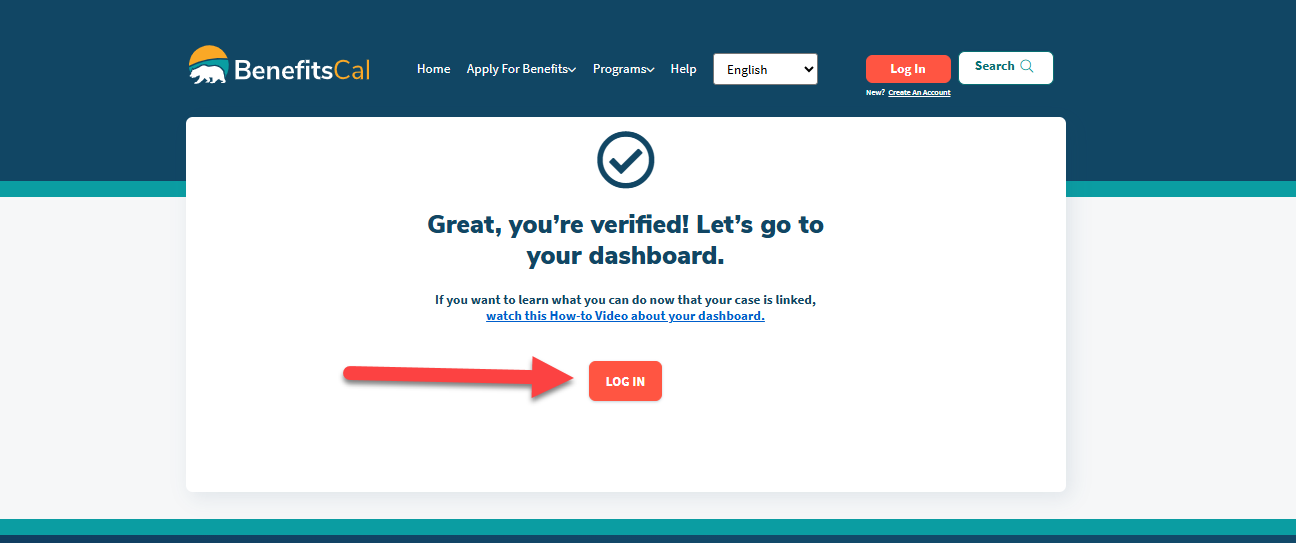
- Click “LOG IN” on the “You’re verified” page.
- Once again, log in to your account and verify.
- Accept the "Terms of Use."
- Confirm or update your mailing address, then click “Go to dashboard.”
- Now that your case is linked, your dashboard will show your benefits, upcoming tasks, messages, and important updates all in one place.