
Self Service Password Reset (SSPR) Instructions
Follow the instructions below to reset your password on your own.
Follow these steps to reset your password
-
1
Go to the Azure login screen
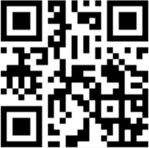
To reset your SFHSA Windows login password, go to portal.azure.us on your mobile phone or scan the QR code below with the phone camera
-
2
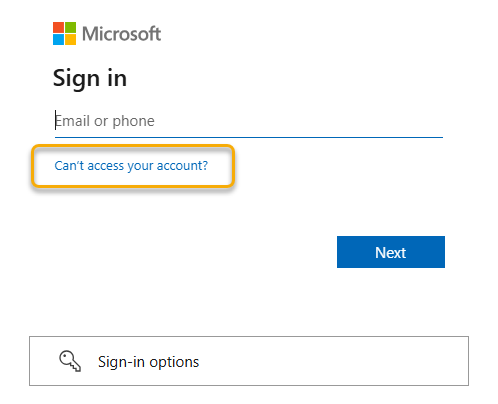
Click "Can't access your account?"
-
3
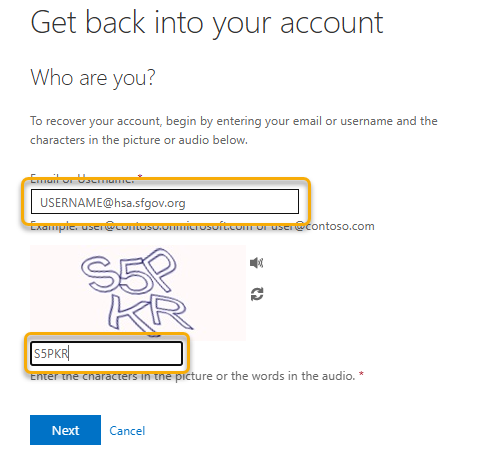
Enter your username
Type in your SFHSA Windows username followed by @hsa.sfgov.org then enter the characters for the CAPTCHA and click “Next.”
-
4
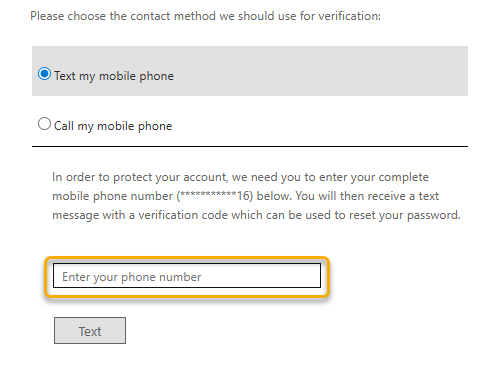
Multi-Factor Authentication (MFA) verification
Follow the prompts to receive a text or voice call to verify your identity.
-
5
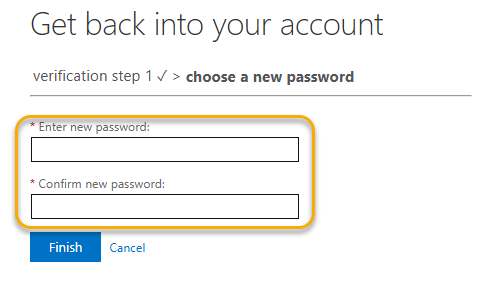
Create a new password
Your password must be:
- 15 characters or longer
And must contain one of each:
- UPPERCASE letters (A-Z)
- lowercase letters (a-z)
- Numerals (0-9)
- Special Characters, including the space key: !@#$%^&*()-_=+[{]}\|;:’”,<.>/?
Helpful Hints:
- Use passphrases – lyrics from a song or poem or line from a movie
- Different languages – combine two or more languages in phrases
- Unique from other account logins
- Avoid using your pet’s or spouse’s or child’s name
- Do not include your first or last name in your password, as personal information can be easily guessed or obtained by attackers.
- The system will prevent you from using a password that is identical to one of the passwords in the user's password history. We recommend against minor alterations to the password, like changing P@ssword1 to P@ssword2.
-
6
Log in with your new password
Please wait 10-15 minutes before logging in with your new password as the system needs time to sync otherwise you may receive an error.